Waiting
Analyzing image…
No clear canvas background was found. The SVG was left unchanged.
Advanced settings
Processed resolutionSSIMSSIM Regret
Free browser-based SVG vectorizer
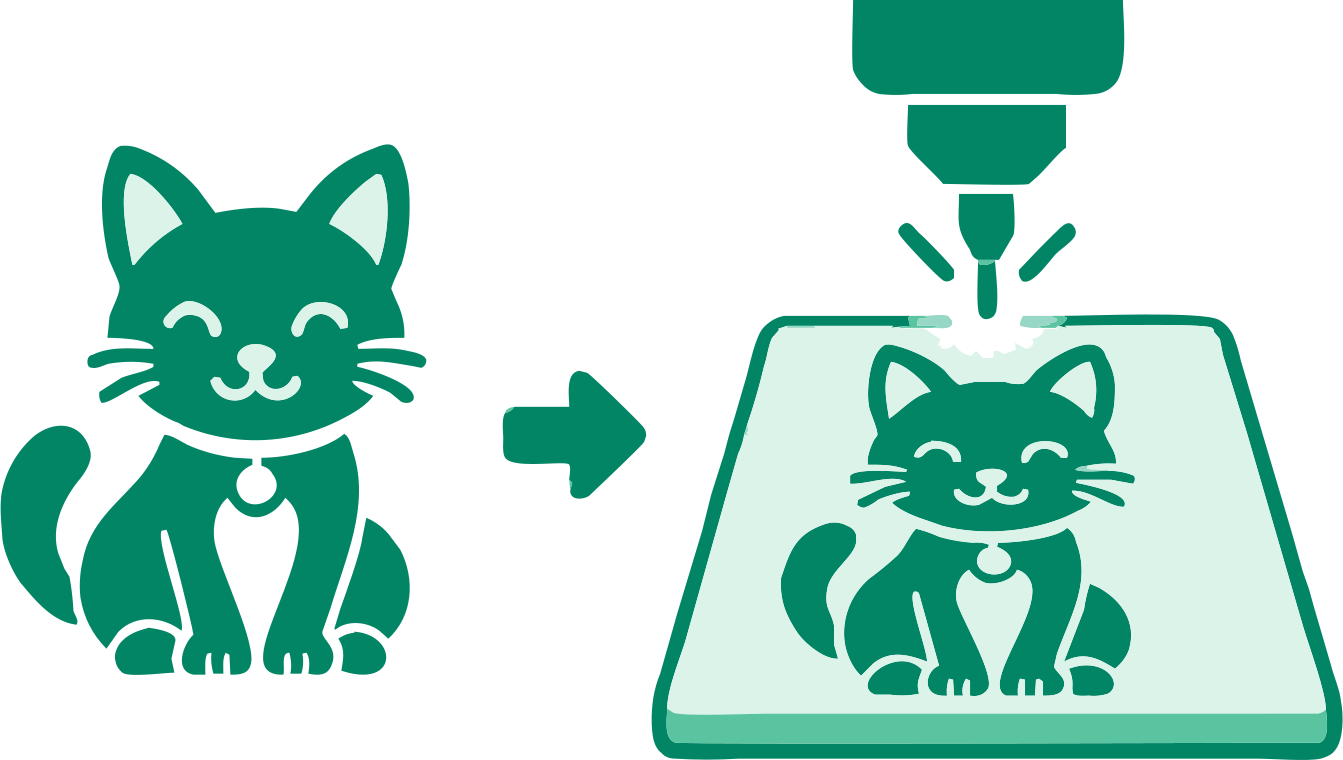
Trace a PNG into filled vector regions for laser engraving. Laser Engraving is selected automatically; review transparency, small marks, and physical dimensions before use.
PNG, JPG/JPEG, WebP, AVIF, or BMP · up to 100 images · 5 MB each
Preparing vectorizer…
Step 2
We’ll adapt tracing, scoring, cleanup, and SVG preparation automatically.
If the conversion process seems to stop or hang, keep at least one pixel of this browser tab visible on your screen so your browser does not background it and keeps the conversion process running.
With Chrome, having the converter as a background tab stops the conversion process. Having it as the main tab in a background window seems to keep the process going.
Analyzing image…
No clear canvas background was found. The SVG was left unchanged.
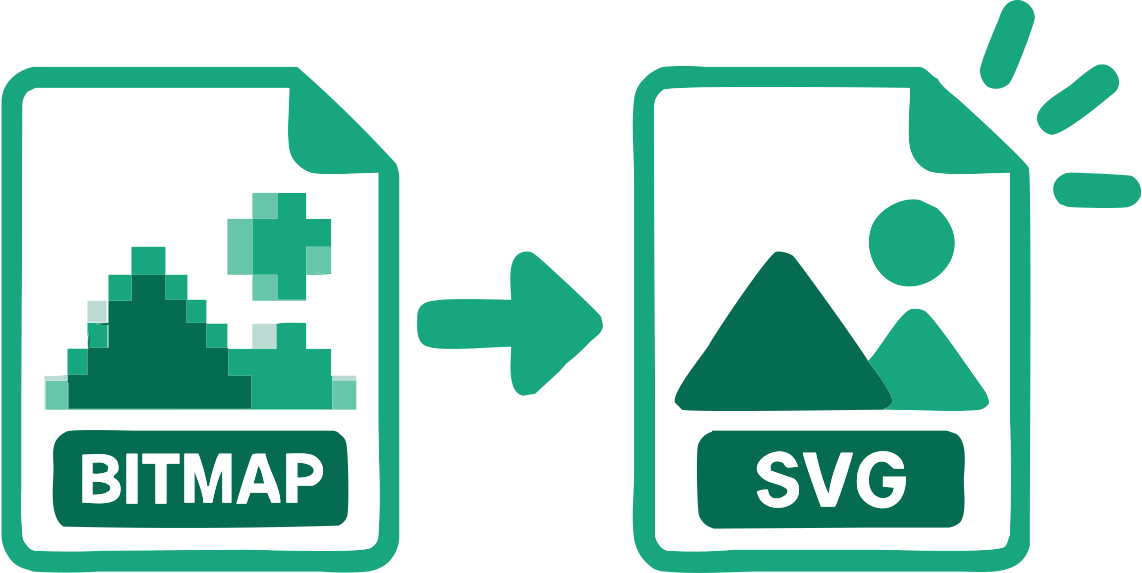
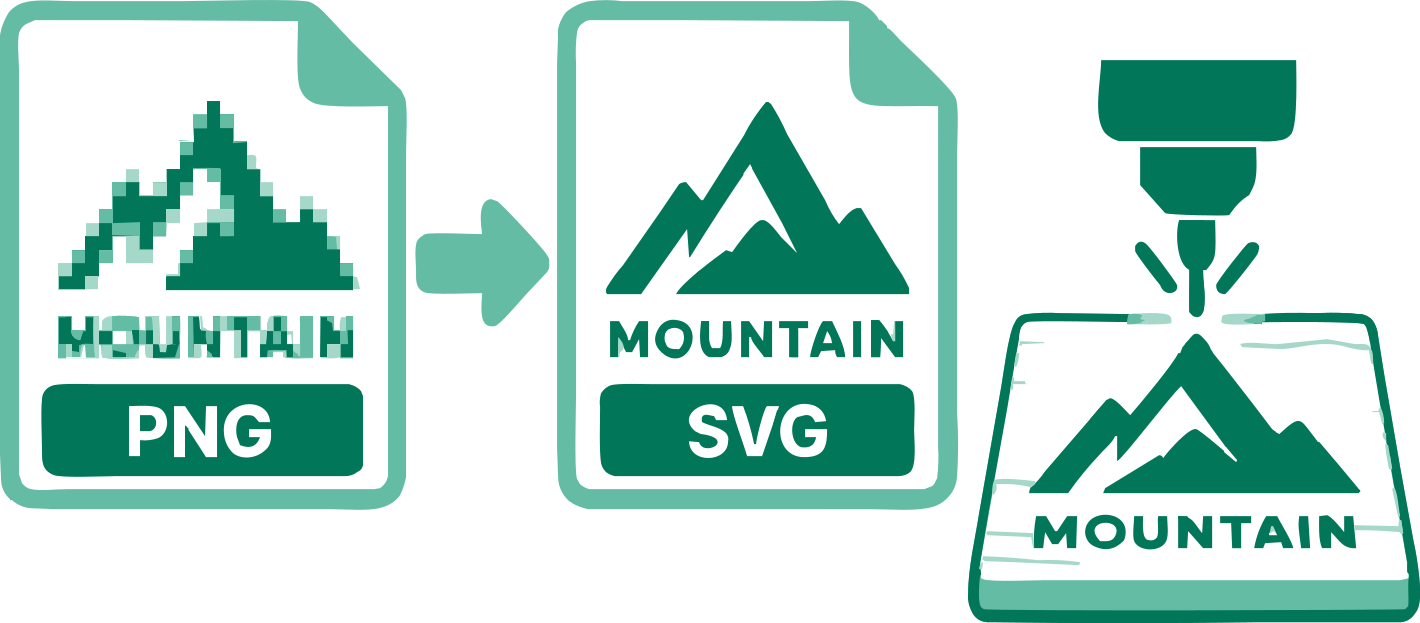
A PNG supplies pixels, while SVG supplies geometry. VectorizeThis creates filled SVG paths for visible artwork; it does not make centerlines or choose laser settings.
Transparent PNGs can separate the design from the canvas. A white area baked into an opaque PNG may instead be traced or need background removal.
Thin highlights, subtle gradients, and antialiased edges can create small regions. Review the geometry and simplify when those regions would engrave poorly.
Engraving a photo as raster dots is a different workflow from this filled-vector preset. Test the SVG in your laser software before production.
Fabrication output retains physical dimensions and geometry checks with SVGO disabled. Laser Engraving compares the reviewed monochrome methods or relevant color palettes. Color sources can offer a palette step followed by SVG choices; this remains filled-region tracing, not centerline tracing or a photo-dithering workflow. Alerts remain visible. Download anyway requires explicit confirmation for the current output; changing its settings requires confirmation again if alerts remain. This does not certify machine, importer or material compatibility.
A low-resolution warning appears when both source dimensions are below 256 px. Enlargement during tracing cannot restore missing source detail.
See the settings reference for threshold, smoothing, circles, cropping and source-aligned zoom.
Select or drag up to 100 PNG images into the converter. Each file may be up to 5 MB and is processed in your browser.
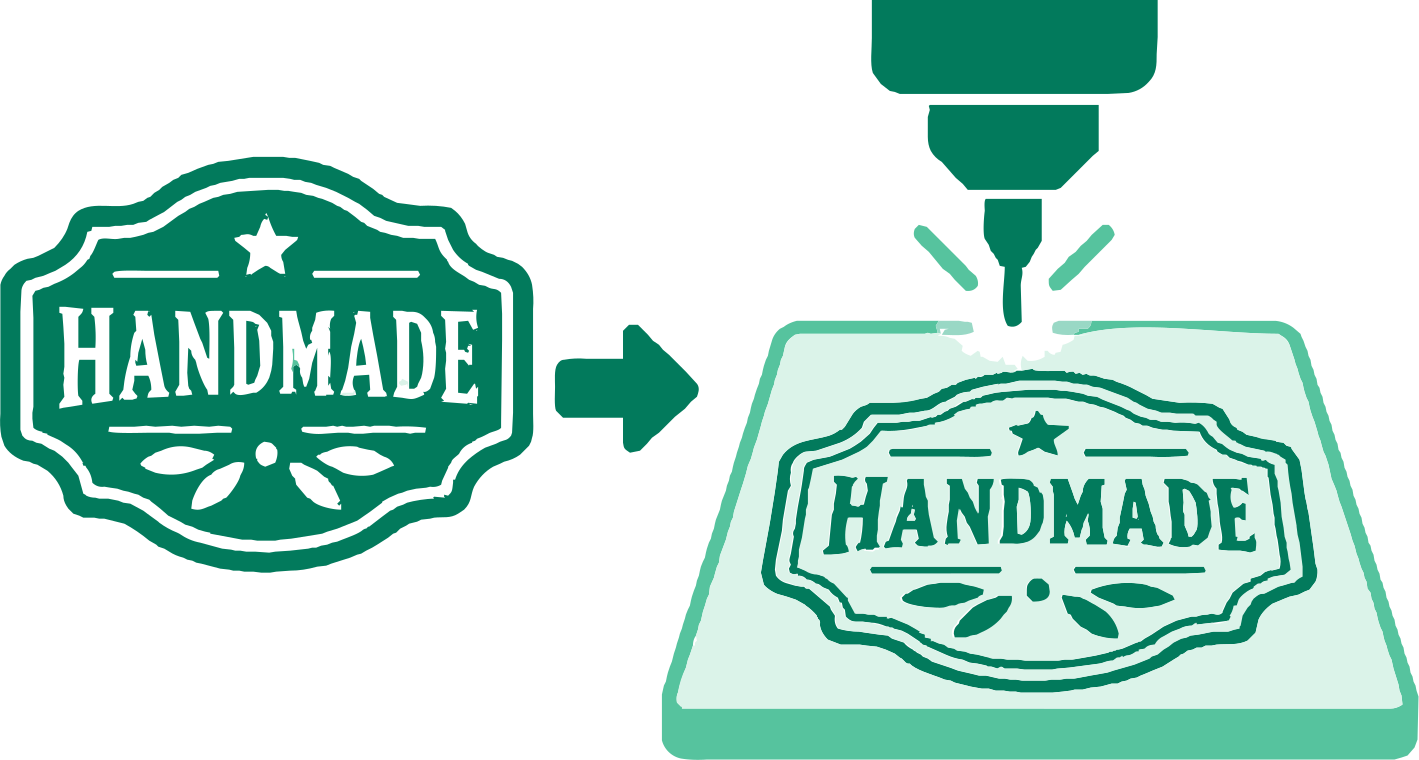
The Laser Engraving use case is already selected. Compare the original with the generated SVG and adjust relevant controls if needed.
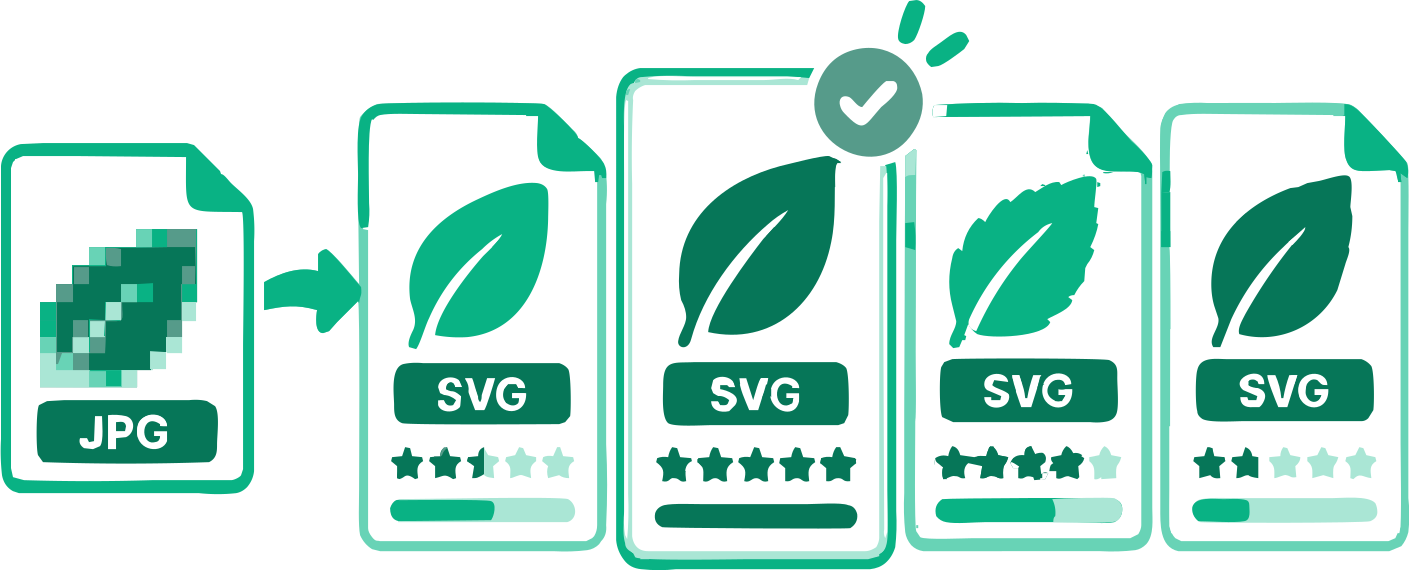
When offered, choose a color palette and then an SVG result; single choices skip those steps. Compare the previews, adjust relevant settings, and download one SVG or the completed batch.
The file contains reconstructed SVG geometry rather than the original bitmap embedded inside an SVG wrapper.
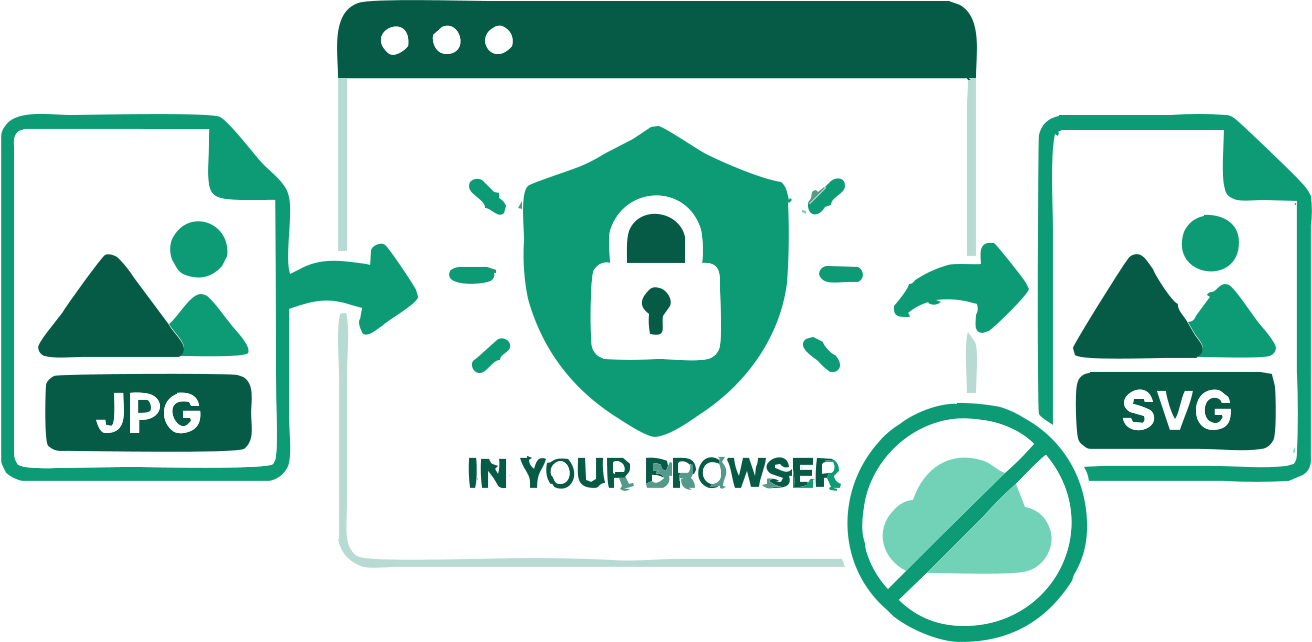
The source images remain in your browser during vectorization.
Monochrome artwork compares six reviewed methods. Color artwork can offer up to four relevant palettes, with distinct SVG results to compare. Photo and Complex Illustration use their dedicated automatic search.
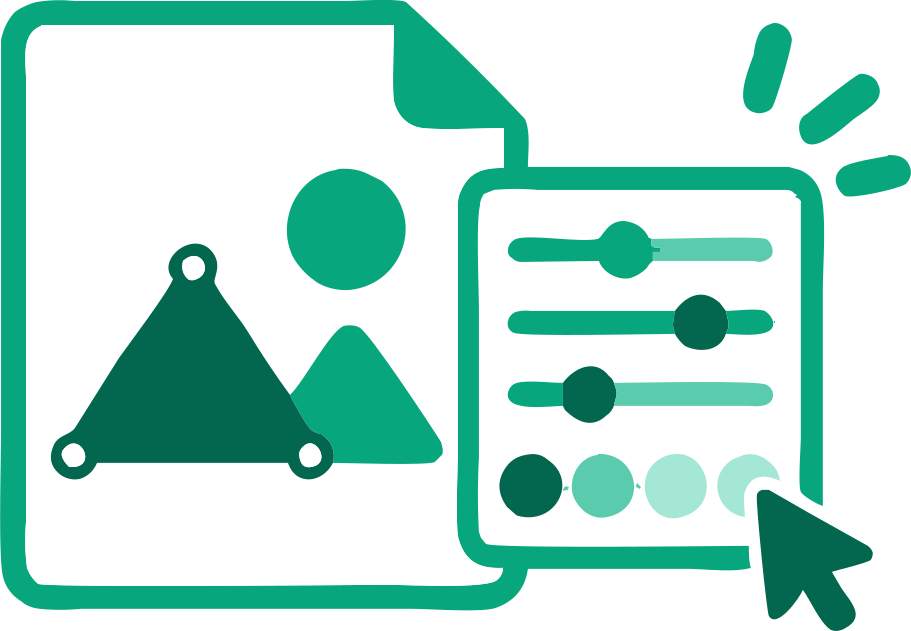
Adjust tracing and physical dimensions while reviewing geometry checks. SVGO optimization is disabled for fabrication; inspect the file in your intended cutting or engraving software.
A suitable outer background can be detected and removed when needed.
Process several images, check each result, and download the completed SVGs together.
Practical answers about tracing, image quality, SVG paths, and downloading the result.
Add a PNG above. Laser Engraving is preselected; inspect filled regions and dimensions before downloading the SVG.
Transparent source areas can remain outside the traced shapes. Inspect semitransparent edges and the final SVG preview.
Yes. VectorizeThis reconstructs visible image regions as SVG paths rather than embedding the source bitmap.
No. The Laser Engraving preset generates filled regions, not centerline traces.
Use the background control when a removable outer region is detected, then inspect pale details to make sure none were lost.
No. Check your importer, material, power, speed, and physical size, and run a test before production.
Yes. You can use the converter and download the SVG without an account or payment.
Conversion happens locally. An image is sent only if you deliberately attach it to a feedback form and submit it.
Yes. Adjust the available tracing settings and physical dimensions, then continue editing the downloaded paths in compatible vector software. Fabrication results do not offer the on-page palette editor.
Trace solid marks into filled SVG regions.
Review lettering and internal openings.
Inspect thin strokes and tiny isolated pieces.
17 converters
Choose a converter for your image format or workflow. Every tool creates editable SVG paths in your browser.
Add an image above and inspect the traced SVG before downloading.
Convert PNG to SVG for Laser Engraving