Waiting
Analyzing image…
No clear canvas background was found. The SVG was left unchanged.
Advanced settings
Processed resolutionSSIMSSIM Regret
Free browser-based vectorizer
Turn a bitmap image into an SVG made of paths. VectorizeThis reads the visible pixels, compares suitable tracing settings, and lets you inspect the reconstructed shapes.
PNG, JPG/JPEG, WebP, AVIF, or BMP · up to 100 images · 5 MB each
Preparing vectorizer…
Step 2
We’ll adapt tracing, scoring, cleanup, and SVG preparation automatically.
If the conversion process seems to stop or hang, keep at least one pixel of this browser tab visible on your screen so your browser does not background it and keeps the conversion process running.
With Chrome, having the converter as a background tab stops the conversion process. Having it as the main tab in a background window seems to keep the process going.
Analyzing image…
No clear canvas background was found. The SVG was left unchanged.
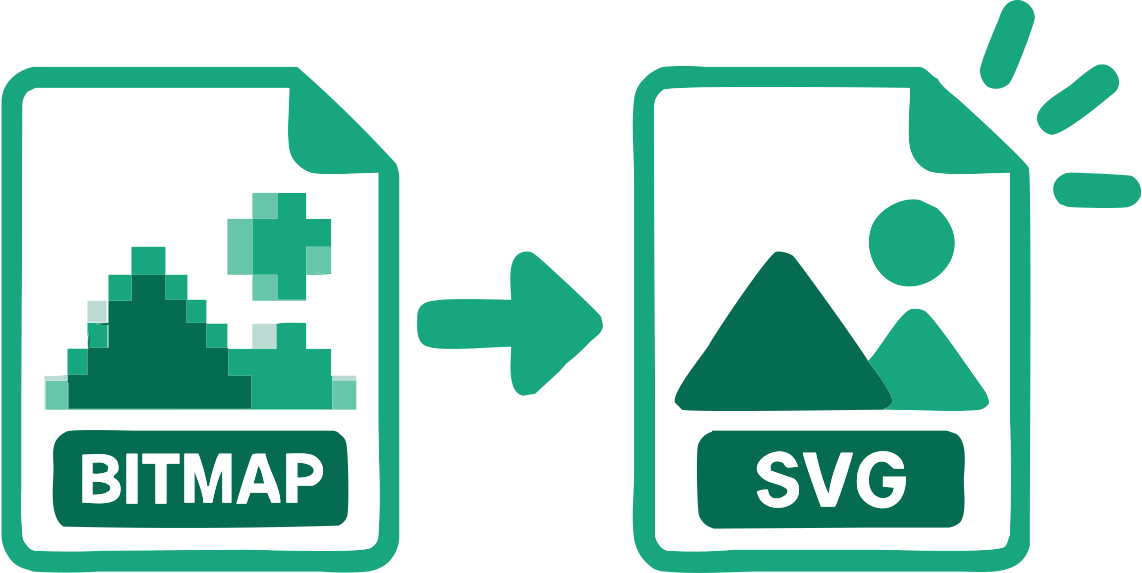
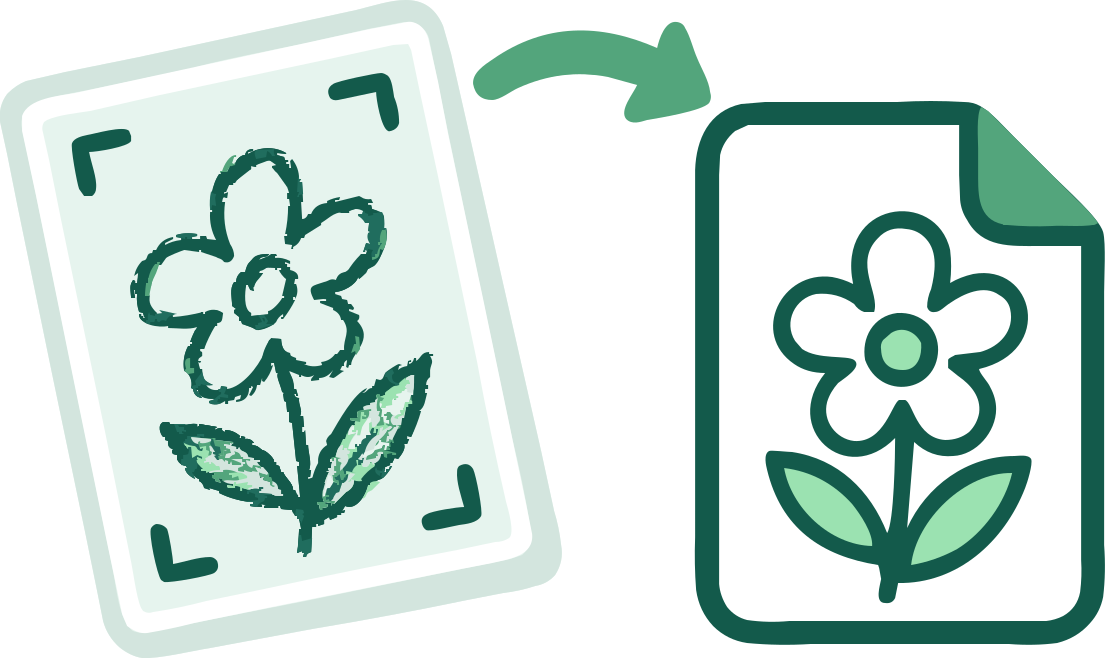
A bitmap stores colored pixels at fixed coordinates. Bitmap-image-to-SVG tracing groups those pixels into regions and fits vector boundaries around them; it does not simply save the same pixels with another extension.
PNG, JPG, WebP, AVIF, and BMP can all hold raster or bitmap imagery. Their compression and transparency differ, but each begins as pixels when sent to the tracer.
High contrast, adequate resolution, and limited texture usually improve the output. Compression noise, tiny text, and soft shading can produce extra paths.
When a background is uniform and connected, VectorizeThis can offer removal. Inspect light subject details and antialiased borders before downloading.
One foreground color on a transparent or confidently detected white canvas can use monochrome tracing. Advanced settings offer an automatic or manual Threshold for that result. Broad grayscale and opacity bands can instead remain separate regions in the color workflow.
For Web or Logo color artwork, choose among relevant palettes before comparing SVG results for that palette. Steps with one choice are skipped. Outside fabrication, removing a background paint from the result swatches also recalculates the bounds when Crop SVG to meaningful content is enabled.
Select or drag up to 100 bitmap images. Each file can be up to 5 MB and is processed in your browser.
Select Web, Logo, Photo, Cricut, laser cutting, or another use case. The choice changes which tracing candidates are tested and how the result is checked.
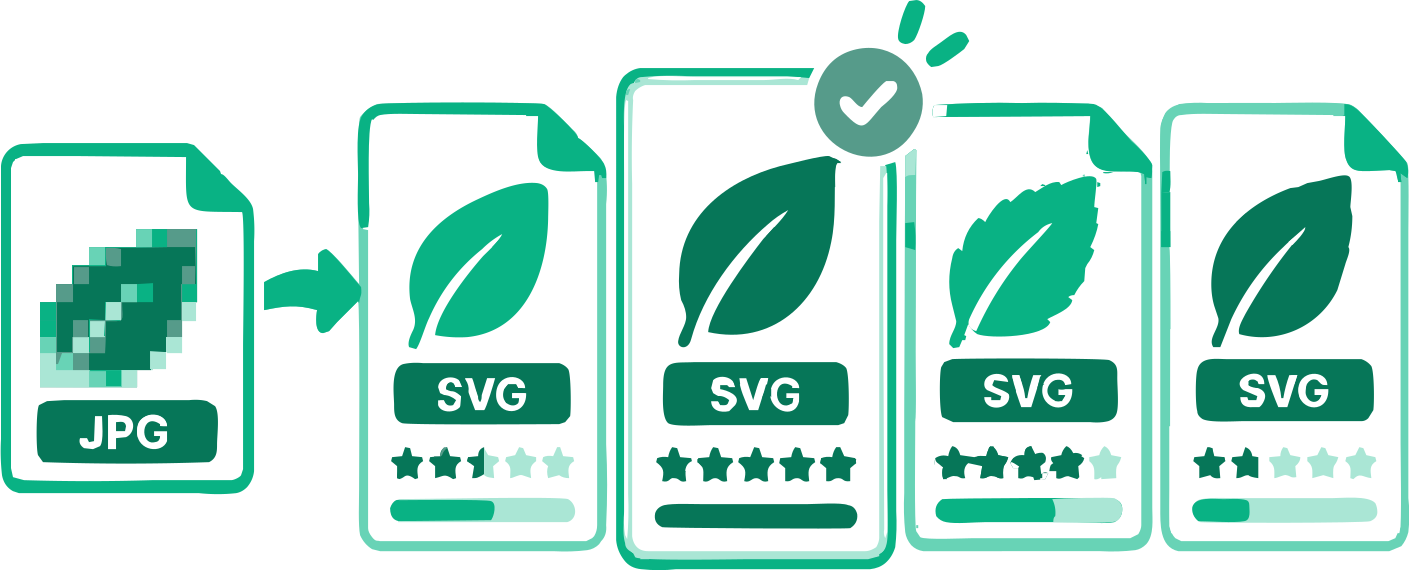
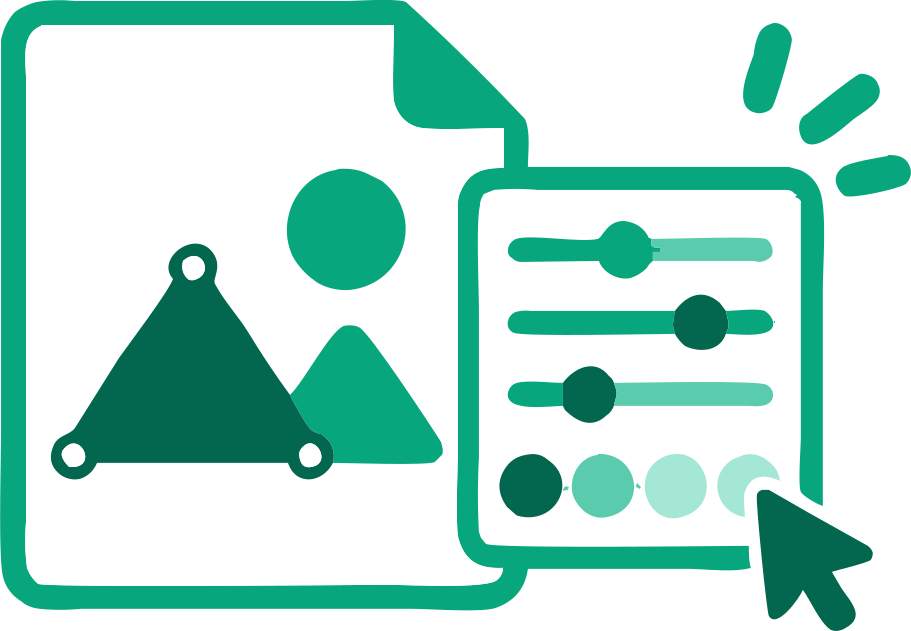
When offered, choose a color palette and then an SVG result; single choices skip those steps. Compare the previews, adjust relevant settings, and download one SVG or the completed batch.
The result contains traced geometry instead of the original bitmap placed inside an SVG wrapper.
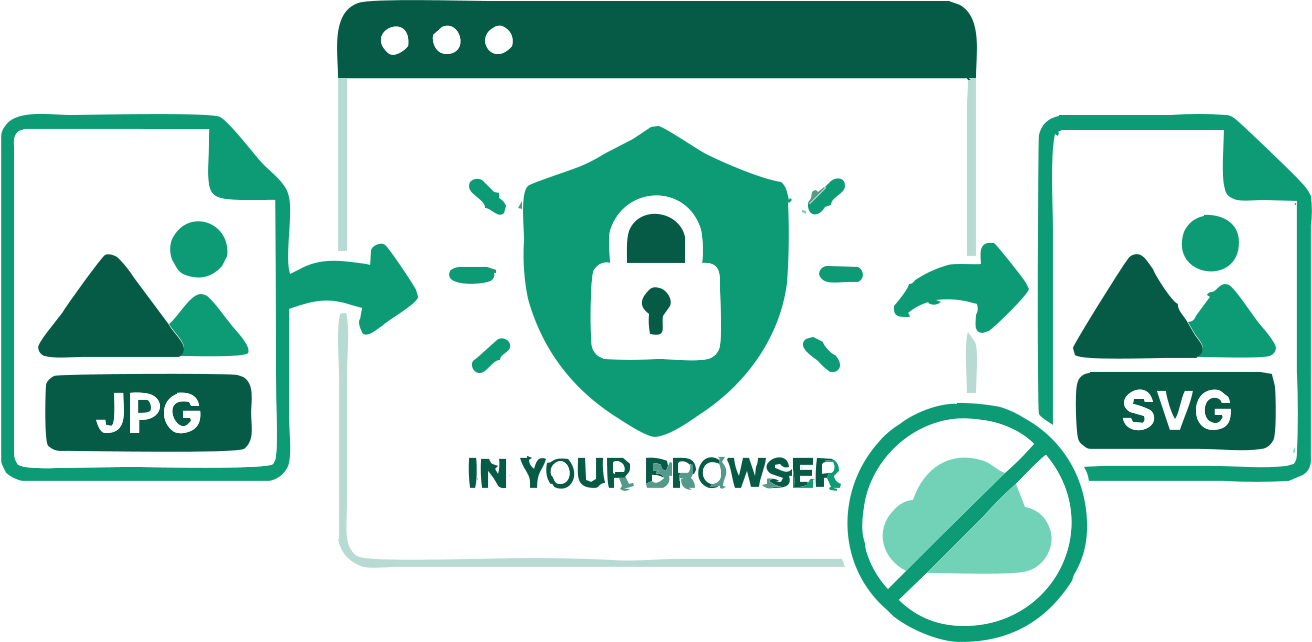
Conversion runs on your device; source images are not uploaded during vectorization.
Monochrome artwork compares six reviewed methods. Color artwork can offer up to four relevant palettes, with distinct SVG results to compare. Photo and Complex Illustration use their dedicated automatic search.
When applicable, you can change the traced palette and rerun the result without starting over.
A uniform connected background can be detected and removed while you review the result.
Process several images, adjust them separately or in bulk, and download completed SVGs together.
Answers about real vector tracing, source quality, editing, and local browser processing.
Add a supported bitmap image above, choose its intended use, and let VectorizeThis compare suitable traces. Review the SVG before copying or downloading it.
Yes. You can use the bitmap image to SVG converter and download the result without an account or payment.
Yes. Visible pixel regions are reconstructed as SVG path geometry rather than embedded as the original bitmap.
No. Bitmap is a general term for pixel-based images. This converter accepts PNG, JPG/JPEG, WebP, AVIF, and BMP.
No. Tracing interprets pixels as shapes. Flat artwork can remain close to the source, while texture and soft transitions require approximation.
Yes, but a photo usually needs many color regions and paths. A photo or complex-illustration use case is more suitable than expecting a compact logo-like result.
Logos, icons, line art, silhouettes, and flat illustrations with clear edges usually trace most cleanly.
The vectorization runs locally in your browser. An image is sent only if you explicitly attach it to a feedback form and submit that form.
Yes. You can recolor available swatches, copy the SVG markup, or open the downloaded paths in compatible vector software.
Turn strong ink boundaries into editable curves.
Recover scalable shapes when the original artwork is unavailable.
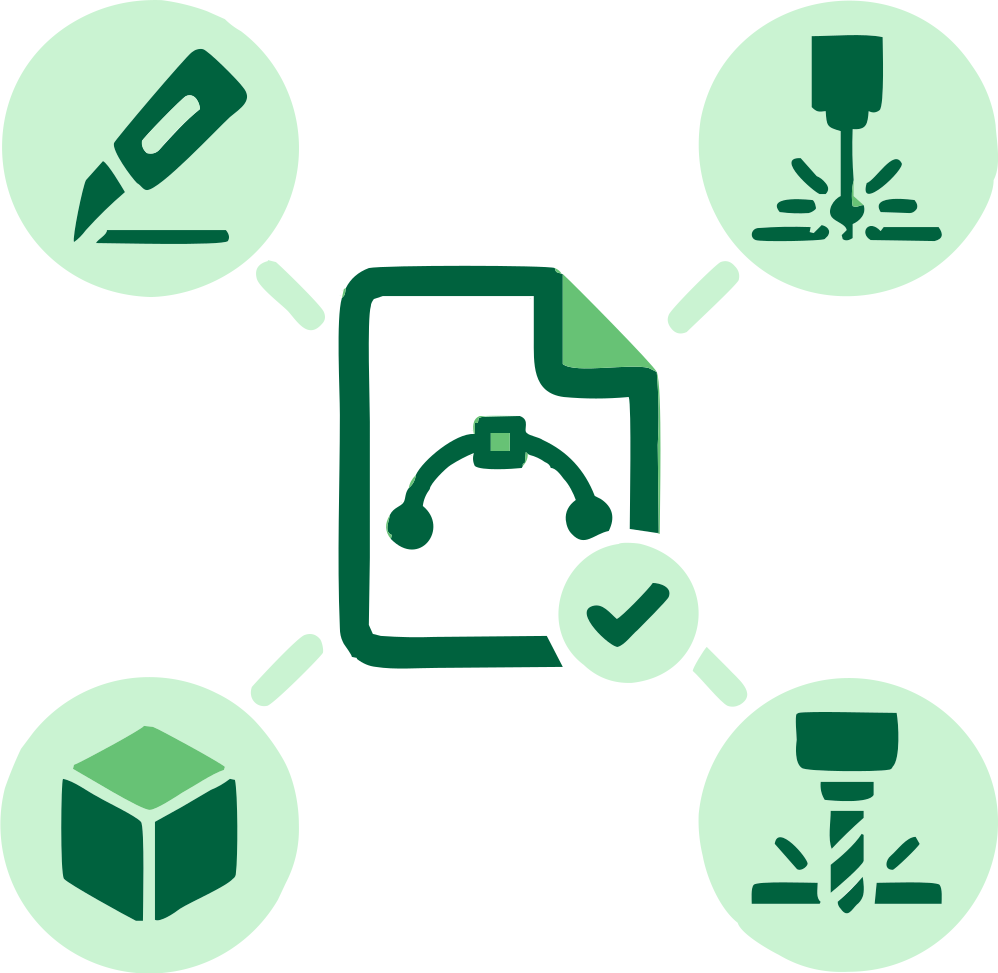
Prepare geometry for a supported fabrication workflow and inspect its warnings.
17 converters
Choose a converter for your image format or workflow. Every tool creates editable SVG paths in your browser.
Add your source image, choose the intended use, and compare the generated vector before downloading.
Bitmap Image to SVG Converter